Getting Started Guide for JumpServer PoC
Adding Devices
1. Preparation
Prepare two devices (for SSH and RDP) and one database to test the product features.
For example:
| IP/Host Name | Port | Type | Account |
| afidc.afi.local | 3389 | Windows | testadmin |
| 10.10.53.210 | 22 | Linux | sergg |
| 10.10.53.3 | 3306 | MySQL | user |
If you need to gather information about the
Windows device, change local account passwords,
create new accounts, or perform other tasks, you must configure
SSH for
Windows.
For RDP connections, this is not required.
2. Editing the Asset Tree
Go to the Console - Assets - Assets section and open the Asset Tree tab. Right-click in this section to open the asset tree editing menu.
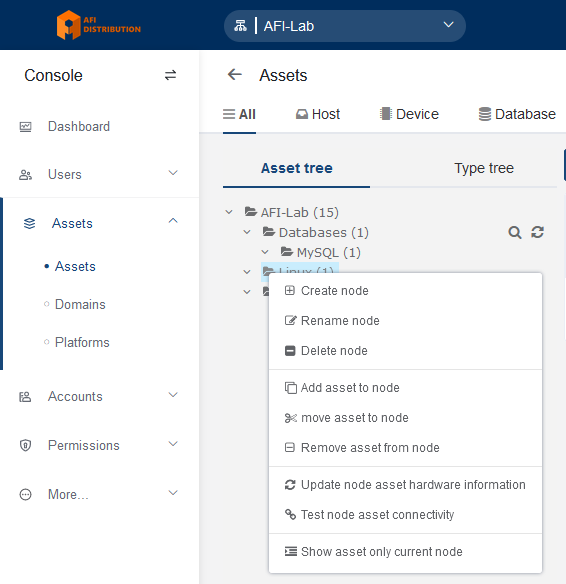
You can create folders (Nodes) and subfolders for your devices (use the Create node option). Devices can be sorted into these folders.
- A device can belong to multiple folders simultaneously.
- These folders can be used to manage access policies, for example, granting access to all devices in a specific folder.
3. Adding Assets to the System
Add a Linux-based device. Windows, MySQL, and other devices are added similarly.
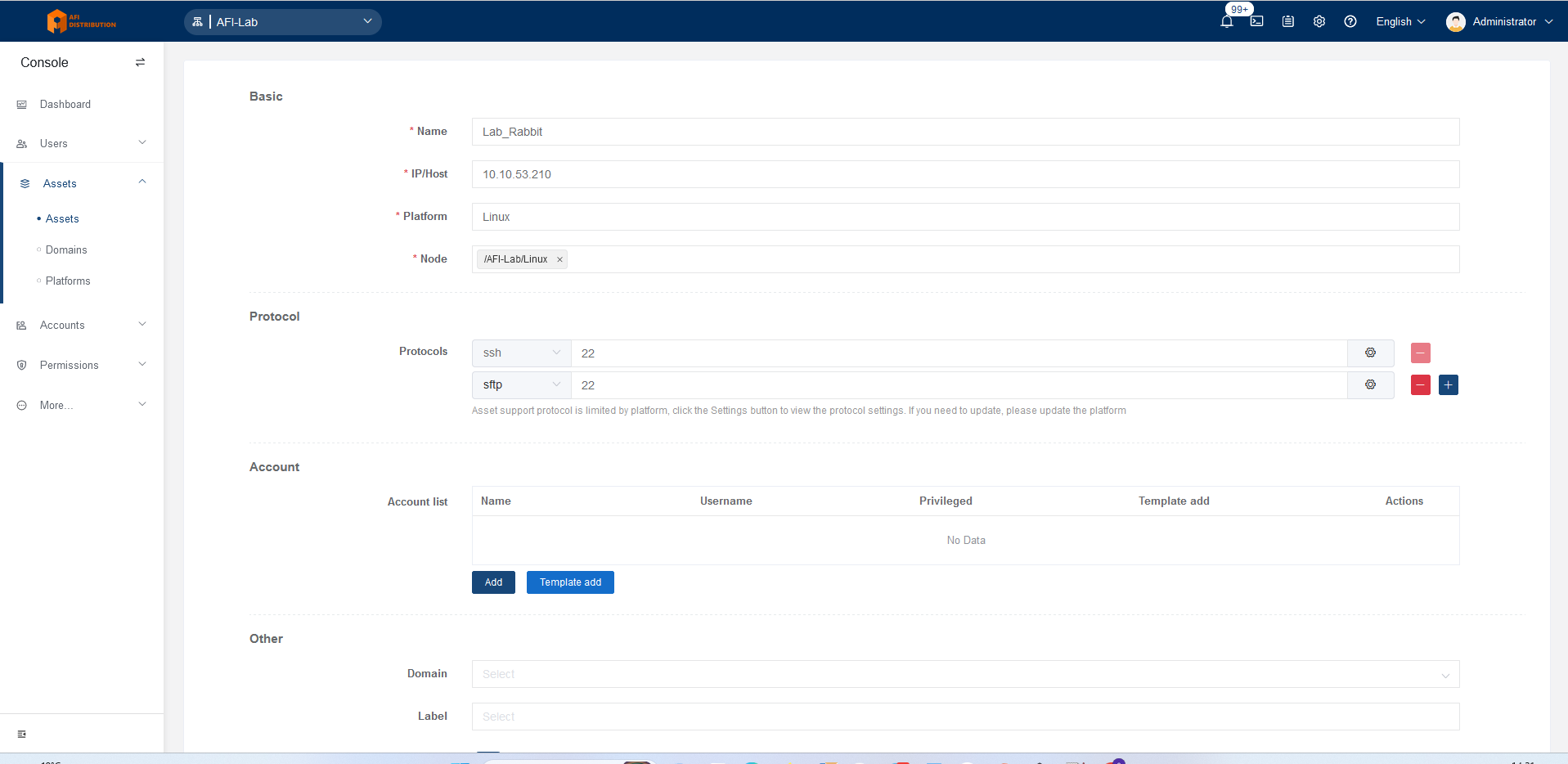
Click the Create button, select the device type Linux (under Host), and fill in the fields:
- Name: Any meaningful name
- IP/Host: The IP address or DNS name of the device
- Platform: Linux
- Node: Folder(s) where the device will be placed
Adjust port numbers if non-standard ports are used.
4. Configuring Device Access Permissions
Go to Console - Policies - Authorization and click the Create button. Fill in the required access parameters:
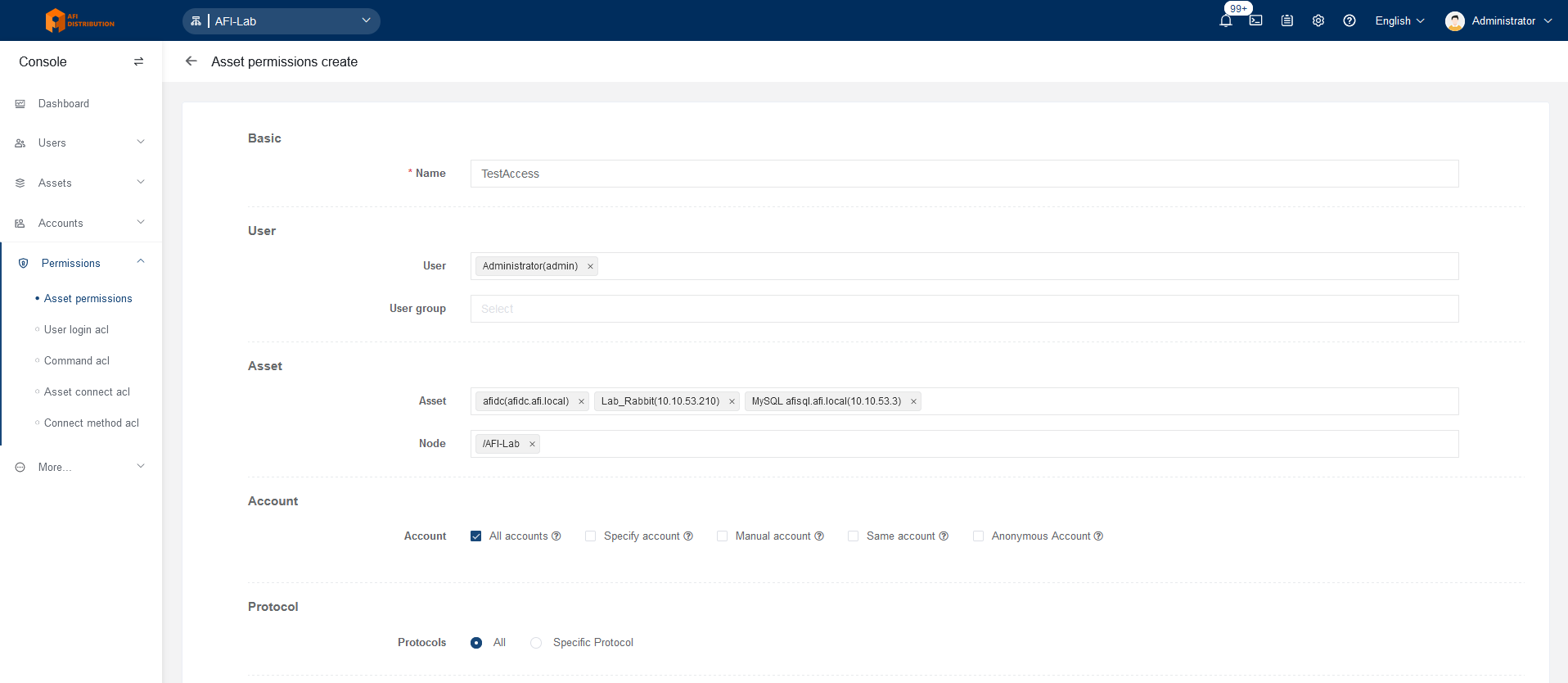
Name: A
meaningful name for the access group
Users: The PAM user(s) who will gain access to the
devices
Groups: User group(s) that will gain access
Assets: The device(s) to which access is
granted
Nodes: Folder(s) containing the devices to which
access is granted
Account:
- All accounts: Allow connections with any existing account for each device
- Specified accounts: Specify particular accounts for connection
- Virtual accounts: enable additional auth options
- Manual account: Allow manual login credentials without adding the account to the system
- Same account: Use the same account as the user's PAM login (LDAP authorization only)
- Anonymous account: Connect without credentials, typically for web interfaces where users input their login credentials manually
Protocol:
Limit the protocol used for connections
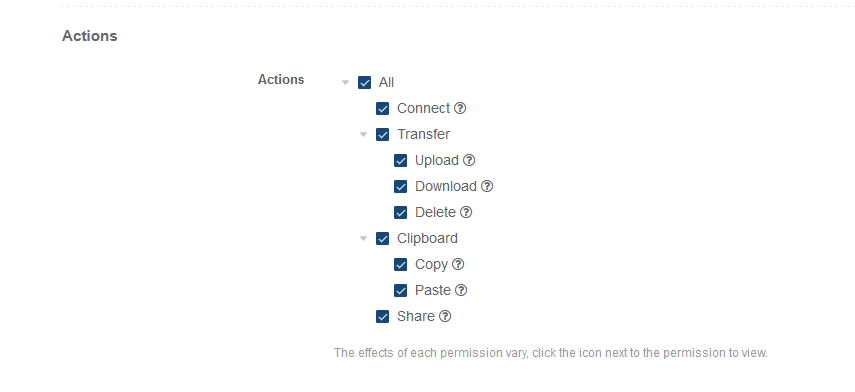
Actions: Enable or disable file transfers,
clipboard sharing, or session sharing permissions if supported by
the connection type.
You can enable or disable the policy and set its start and end time:

Click Submit to save the settings.
5. Connecting to Devices
Go to the Web Terminal by clicking the button in the top-right corner:

In the terminal, users see only the devices they are permitted to access. Click on the desired device in the list to select the account and connection type:
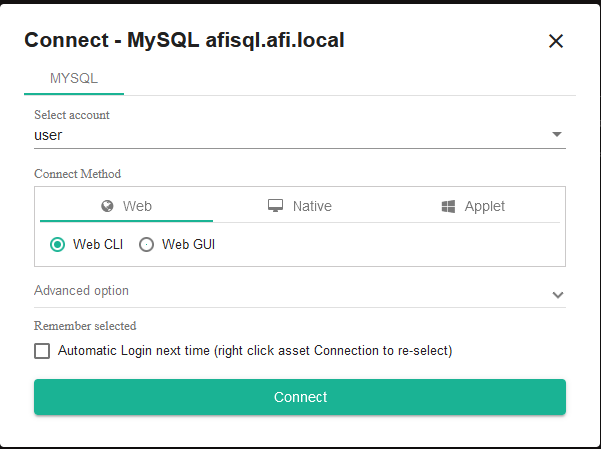
Without additional configuration, you can connect via the web interface using SSH, RDP, and SFTP, as well as to MySQL via Web CLI or Web GUI. Other connection types, such as Kubernetes, web interfaces, RemoteApp applications, and databases using dedicated clients, will be covered in other articles.
Need help?
Support during the JumpServer PAM Enterprise Edition PoC
Have you started testing JumpServer PAM EE and encountered an issue? Our process includes organizing email threads or Telegram groups for prompt issue resolution. If you are sure you were not added to such a group, please contact your supplier or reach out to us at support@afi-d.com
Training for your specialists on configuring and administering JumpServer PAM
As part of an active technical support subscription, we will train your specialists in installation, configuration, administration of JumpServer PAM, as well as recovery from errors and incidents.
Training is conducted online, according to a pre-agreed plan, and includes mandatory practical knowledge verification with the issuance of personalized certificates (upon successful exam completion).
Video tutorials
Visit our channel on YouTube with video tutorials covering the configuration of all JumpServer PAM sections. The videos are updated with each new release.
Technical support for the free JumpServer PAM Community Edition
The idea of implementing a complex but business-critical PAM system can be intimidating due to the perceived complexity of setup, administrator and security team training, and changes to account management processes.
To make the deployment and configuration of JumpServer Community Edition comfortable, and to ensure you can always rely on professional assistance, AFI Distribution offers an annual technical support subscription.
The support package priced at 1.5 million RUB per JumpServer Community Edition instance (with no limits on the number of users or target systems) includes everything required to use PAM:
- documentation and instructions;
- usage scenarios and recommended deployment architectures;
- training for administrators and information security specialists on working with JumpServer;
- tips and solutions for common questions;
- notifications about new releases with verified upgrade instructions;
- integration with RADIUS and multi-factor authentication “Multifactor” ;
- direct access to an engineer (no first-line support) with a clear SLA.