Setting up Panda for application publishing(alternative to RemoteApp)
JumpServer supports using both Windows Server and Linux as application publishing machines, such as for publishing Chrome and Firefox browsers for HTTP sessions and various database clients.
Types of Application Publishing:
Microsoft
RemoteApp: A method of publishing applications based on
Windows Server, providing maximum smoothness. Requires additional
configuration of Windows Server and the purchase of Microsoft RDS
CALs.
Panda (Virtual Application): A Linux-based
application publishing method, characterized by medium smoothness,
good compatibility, and support for operating systems like CentOS,
RedHat, Kylin, and openEuler.
Setting Up Panda for Application Publishing
Principle of Operation:
The Linux-based application publishing machine uses container
technology to isolate the application in an independent runtime
environment. The Panda component provided by JumpServer manages
virtual applications.
The process looks as follows:
1. The user accesses the JumpServer Web Terminal and connects to
the selected virtual application.
2. The Panda component creates a GUI container based on VNC and
forwards the VNC connection information to the Lion component.
3. The Lion component connects to the container.
Deployment Schemes
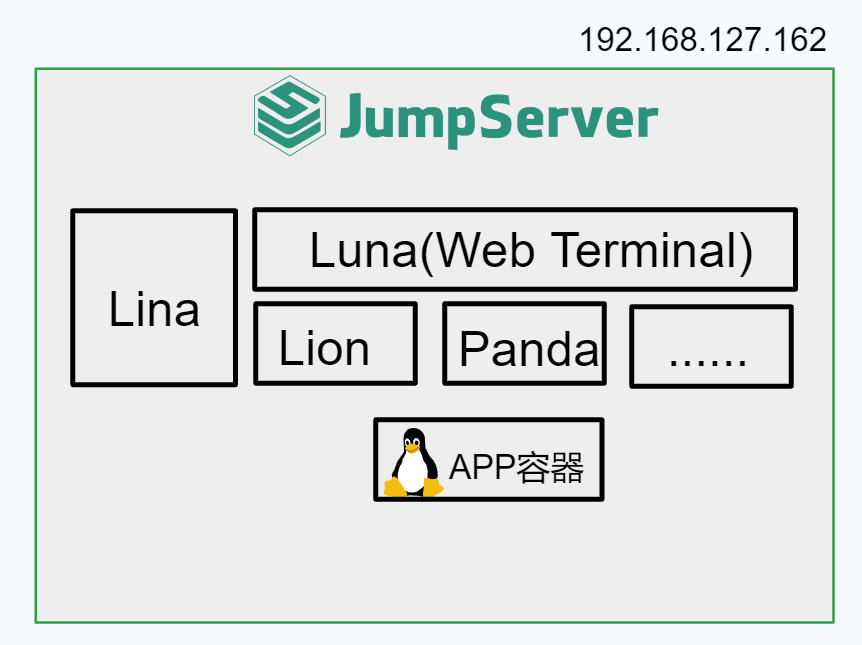
Scheme 1: All in One
Using the server where JumpServer is deployed as a machine for publishing virtual applications.
1. Configuring the Main Configuration File
Open the main JumpServer configuration file.
nano /opt/jumpserver/config/config.txtAdd the following parameters to it:
# Enable the Panda component
PANDA_ENABLED=1
# Enable virtual applications in the core
VIRTUAL_APP_ENABLED=1
# Panda host IP address (JumpServer IP)
PANDA_HOST_IP=192.168.127.162
# URL for Lion to connect to Panda
PANDA_HOST=http://panda:9001
Restart the JumpServer service to apply the changes.
[root@localhost ~]# jmsctl restart2. Enabling the Virtual Applications Feature
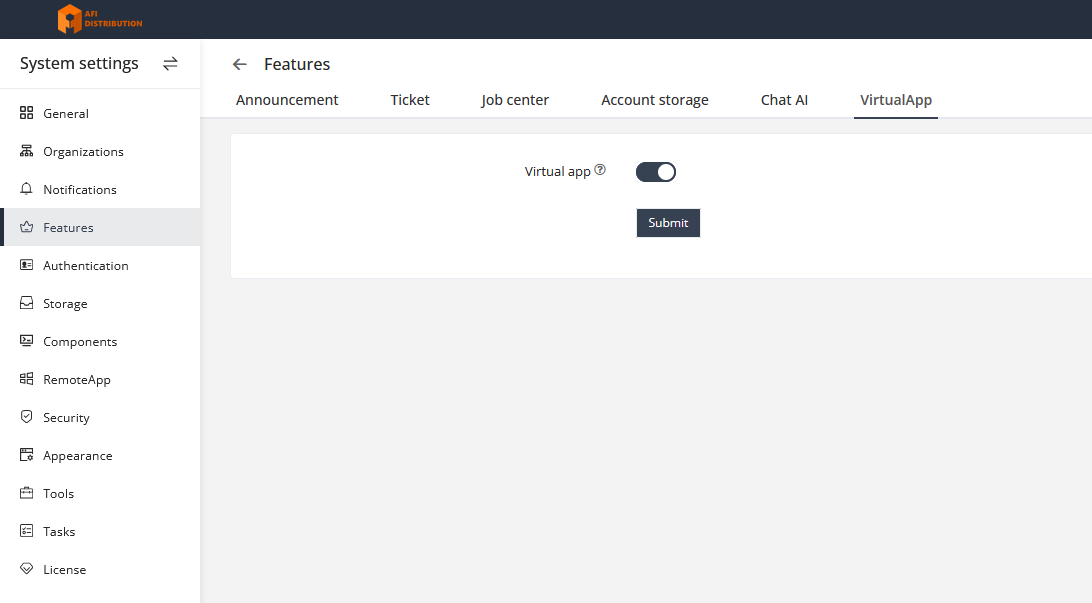
In the JumpServer management console, go to System Settings → Features → VirtualApp and activate the virtual applications feature.
3. Loading Virtual Applications
Download virtual applications locally. Currently supported
applications include:
Chrome, DBeaver. Distributions
for these applications are available on the vendor portal.
Applications for Panda are located in the Virtual App section,
while others are only for RemoteApp (RDS).
In the JumpServer management
console, navigate to System Settings →
RemoteApps and upload the virtual applications in
the VirtualApp section:


After a short wait, the application will be automatically deployed on the application-publishing machine. In the JumpServer admin console, go to System Settings → RemoteApp → Application Providers and click the name of the panda server. In the window that opens, switch to the VirtualApp tab

4. Using Virtual Applications
Connect to assets using virtual applications.
Note: At this point, the JumpServer service will launch the virtual application container: 2970298425/docker-chrome-app:v0.1.0 (Note: this container is approximately 1.3GB in size and requires downloading over the Internet. In a local network, it can be manually downloaded).
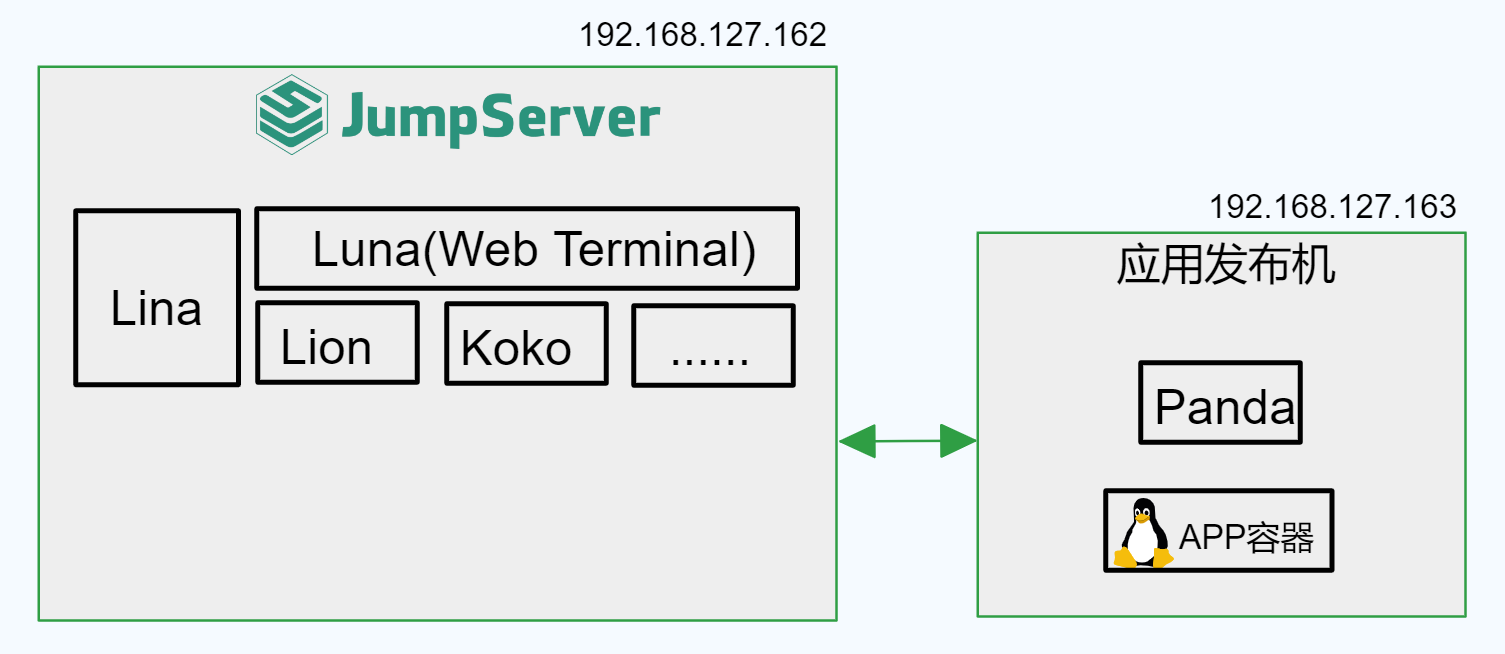
Scheme 2: Panda on a Separate Server
1. Configuring the Main Configuration File
Open the main JumpServer configuration file.
nano /opt/jumpserver/config/config.txtAdd the following parameters to it:
# Enable the Panda component
PANDA_ENABLED=0
# Panda IP for the Lion component
PANDA_HOST=http://192.168.127.163:9001
Restart the JumpServer service to apply the changes.
[root@localhost ~]# jmsctl restart2. Installing Panda on a Separate Machine
Unpack the JumpServer installation package on the publishing machine, install Docker and Docker Compose, and load the image.
[root@panda ~]# tar xzvf jumpserver-offline-release-v3.10.6-amd64.tar.gz -C /optInstall Docker and Docker Compose:
[root@panda ~]# cd /opt/jumpserver-offline-release-v3.10.6-amd64/scripts
[root@panda scripts]# ./2_install_docker.sh
Load the Panda image:
[root@panda scripts]# cd images
[root@panda images]# docker load -i panda:v3.10.6.tar
Create a docker-compose file for Panda:
[root@panda ~]# mkdir -p /data/jumpserver/panda/data
[root@panda ~]# mkdir -p panda
[root@panda ~]# cd panda
[root@panda panda]# cat docker-compose.yaml
version: '2.4'

services:
  panda:
    image: registry.fit2cloud.com/jumpserver/panda:v3.10.6
    container_name: jms_panda
    hostname: jms_panda
    ulimits:
      core: 0
    restart: always
    ports:
      - 9001:9001
    tty: true
    environment:
      - BOOTSTRAP_TOKEN=YmEyNTRkNTYtNDIyMi02OTJm
      - CORE_HOST=http://192.168.127.162
      - NAME=panda
      - PANDA_HOST_IP=192.168.127.163
    volumes:
      - /data/jumpserver/panda/data:/opt/panda/data
      - /var/run/docker.sock:/var/run/docker.sock:z
    healthcheck:
      test: "curl -fsL http://localhost:9001/panda/health/ > /dev/null"
      interval: 10s
      timeout: 5s
      retries: 3
      start_period: 10s
BOOTSTRAP_TOKEN is taken from the JumpServer configuration file: /opt/jumpserver/config/config.txt
CORE_HOST - The address of your JumpServer
PANDA_HOST_IP - The IP address of Panda
Start the Panda container:
docker-compose up -d3. Enabling the Virtual Applications Feature
Repeat the steps from the All in One section.
4. Loading Virtual Applications
Repeat the steps from the All in One section.
5. Using Virtual Applications
Repeat the steps from the All in One section.
| << RemoteApp configuration for application publishing | Changing the lifetime and reusability of connection tokens in JumpServer >> |
Need help?
Support during the JumpServer PAM Enterprise Edition PoC
Have you started testing JumpServer PAM EE and encountered an issue? Our process includes organizing email threads or Telegram groups for prompt issue resolution. If you are sure you were not added to such a group, please contact your supplier or reach out to us at support@afi-d.com
Training for your specialists on configuring and administering JumpServer PAM
As part of an active technical support subscription, we will train your specialists in installation, configuration, administration of JumpServer PAM, as well as recovery from errors and incidents.
Training is conducted online, according to a pre-agreed plan, and includes mandatory practical knowledge verification with the issuance of personalized certificates (upon successful exam completion).
Video tutorials
Visit our channel on YouTube with video tutorials covering the configuration of all JumpServer PAM sections. The videos are updated with each new release.
Technical support for the free JumpServer PAM Community Edition
The idea of implementing a complex but business-critical PAM system can be intimidating due to the perceived complexity of setup, administrator and security team training, and changes to account management processes.
To make the deployment and configuration of JumpServer Community Edition comfortable, and to ensure you can always rely on professional assistance, AFI Distribution offers an annual technical support subscription.
The support package priced at 1.5 million RUB per JumpServer Community Edition instance (with no limits on the number of users or target systems) includes everything required to use PAM:
- documentation and instructions;
- usage scenarios and recommended deployment architectures;
- training for administrators and information security specialists on working with JumpServer;
- tips and solutions for common questions;
- notifications about new releases with verified upgrade instructions;
- integration with RADIUS and multi-factor authentication “Multifactor” ;
- direct access to an engineer (no first-line support) with a clear SLA.